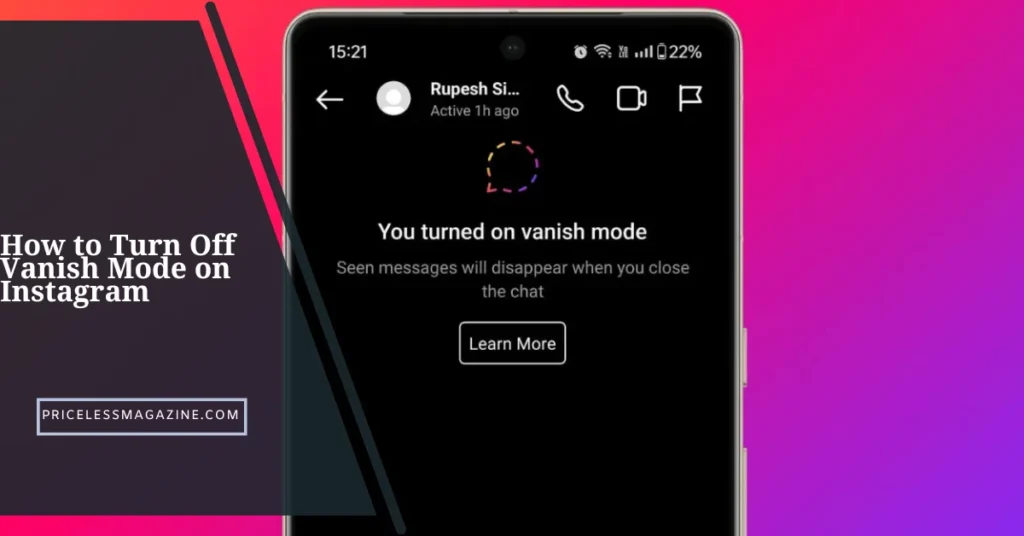

Many people activate Vanish Mode without realizing it. The screen becomes dark, messages disappear after closing the chat and a special alert appears. If you are wondering how to turn off Vanish Mode on Instagram and bring your chat back to normal, you are not alone.
This detailed guide explains the meaning of this feature, why it turns on, how to disable it, how to know it is off and how to fix issues when it refuses to switch back. Everything is written in easy language so you can follow the steps without confusion.
What Vanish Mode Means on Instagram
Vanish Mode is a chat feature that makes messages disappear once you close the conversation. It is designed for private and temporary chats. When you enable it, the background becomes dim and both you and the other person can send messages that vanish automatically.
It is not a permanent feature. You can control it anytime. Knowing how to turn off Vanish Mode on Instagram helps you stay in regular chat mode where your messages remain saved.
Signs That Vanish Mode Is Enabled
You can easily identify when Vanish Mode is on:
- Chat screen turns dark
- A message appears saying Vanish Mode is active
- Messages remove themselves after closing the chat
- A swipe up animation appears
- The other person receives a notification
Once you learn these signs, you can detect it quickly and apply the steps to turn it off.
How to Turn Off Vanish Mode on Instagram
The process is simple for both Android and iPhone. The method is almost the same because Instagram keeps the interface similar across devices.
How to Turn Off Vanish Mode on Instagram on Android
Follow the steps below:
- Open Instagram and go to your direct messages.
- Select the chat where Vanish Mode is active.
- Swipe up from the bottom of the screen and release.
- The dark background will fade and normal mode will return.
- You will see a note confirming that Vanish Mode is off.
This gesture works instantly. If it does not respond the first time, try swiping slowly.
How to Turn Off Vanish Mode on Instagram on iPhone
iPhone users follow the same method with a smooth swipe.
- Open the DM section.
- Tap the chat where the effect is active.
- Swipe up gently and let go.
- The chat will switch back to the normal theme.
- Messages will stop disappearing after closing the chat.
If your swipe does not work, close and reopen the app first before trying again.
How to Know When Vanish Mode Is Off
Once the feature is disabled, you will notice:
- The background becomes bright again
- Messages stay in the conversation permanently
- No special icons appear at the top
- The chat looks like a regular Instagram DM
These indicators confirm that your chat is back to normal and you have completed the steps on how to turn off Vanish Mode on Instagram successfully.
Why Vanish Mode Turns On Without You Intending
Sometimes you do not mean to enable it. Below are common reasons that cause accidental activation.
Accidental Swipe Up
A quick upward swipe inside a chat can trigger the feature. Some users do it without noticing.
Previous Setting Saved
If the chat had Vanish Mode enabled in the past, reopening it may trigger it again for a moment.
Touch Sensitivity
High sensitivity settings make gestures respond faster than expected.
App Bugs
Older app versions may activate features without your action.
Shared Control
If the other person activates it, it appears on your side too.
Understanding these triggers helps you avoid the problem in the future.
How to Disable Vanish Mode So It Does Not Turn On Again
You cannot lock the feature permanently but you can reduce accidental activation. Try the tips below for a smoother experience.
Avoid Upward Swipes
Do not swipe from the bottom inside a chat unless needed.
Keep Instagram Updated
New updates fix bugs related to gesture control and chat behavior.
Reinstall the App
If the app misbehaves regularly, reinstalling resets all broken settings.
Reduce Touch Sensitivity
Lowering sensitivity helps limit accidental gesture triggers.
Communicate With the Other Person
If they regularly activate it, ask them before enabling it in shared chats.
Troubleshooting When Vanish Mode Does Not Turn Off
Sometimes the feature refuses to switch back. These issues can be solved with a few simple steps.
Restart the App
Close Instagram and reopen it. This refreshes chat functions.
Log Out and Log In
Logging out resets your chat state and refreshes the system.
Clear Cache on Android
Clearing cache fixes stored issues that interfere with gestures and chat settings.
Update Your App
Install the latest version so the feature works properly.
Reconnect Internet
Poor internet connection can freeze the chat interface.
Restart the Device
A restart solves many software glitches instantly.
If none of these work, reinstall the app for a complete reset.
How to Turn Off Vanish Mode on Instagram Safely With Someone Else In the Chat
Because Vanish Mode is a shared feature, both people see it together. You can still turn it off alone, but keep these points in mind:
- The other person sees a notification
- Messages will no longer disappear
- If they turn it on again, it will reactivate for you
- It is not possible to hide activation or deactivation
This gives both users equal control for privacy.
Privacy Tips When Using Instagram Chats
Even though this feature removes messages, you should know how privacy works in Instagram DMs.
Screenshots Notify the Other Person
Instagram sends an alert when someone takes a screenshot in Vanish Mode.
Messages Still Follow App Policies
While messages disappear from the chat, keep in mind they may still be stored in system logs.
Use Vanish Mode Only With Trusted People
Because the feature notifies both sides, use it only with people you trust.
Disappearing Messages Are Not Archived
You cannot recover them later. Once gone, they cannot be retrieved.
Comparison Table: Vanish Mode Vs Normal Chat
| Feature | Vanish Mode | Normal Chat |
|---|---|---|
| Message Duration | Disappears after closing chat | Stays permanently |
| Background | Dark themed | Light themed |
| Shared Control | Both users | Both users |
| Screenshot Alerts | Yes | No |
| Privacy Level | Higher | Standard |
This table helps you understand why learning how to turn off Vanish Mode on Instagram is useful when you want to keep chat history.
Extra Tips for Smoother Chat Experience
Turn Off Motion Gestures
Some devices allow disabling extra gestures to prevent accidental swipes.
Avoid Using Old App Versions
Older versions cause display issues and chat malfunctions.
Test Swipes Slowly
Learn the right motion so you do not enable features unintentionally.
Keep DMs Organized
Delete old chats or clear unnecessary messages for smoother performance.
Frequently Asked Questions
Find answers to the most common questions
Why does my Instagram chat turn dark suddenly?
This happens when Vanish Mode is activated. A swipe up in the chat enables it.
How to turn off Vanish Mode on Instagram instantly?
Open the chat and swipe up from the bottom until the screen returns to normal.
Does the other person know when I turn it off?
Yes, Instagram shows a notification to both users.
Why do my messages disappear after closing a chat?
You are in Vanish Mode. Turning it off stops messages from disappearing.
Why can I not turn off Vanish Mode even after swiping?
Restart the app, clear cache, update Instagram or reinstall it.
Can Vanish Mode turn on by itself?
It can activate accidentally through gestures or app bugs.
Does Vanish Mode work in group chats?
No, it works only in one to one conversations.
Conclusion
Knowing how to turn off Vanish Mode on Instagram helps you keep your conversations stable and visible. The swipe up method works on both Android and iPhone, and you can easily confirm when the feature is off. Understanding why it turns on, how to prevent accidental activation and how to fix common issues ensures a smooth chat experience every time.
Whether you want to keep messages saved or avoid sudden disappearing chats, this guide gives you everything you need in simple steps.