
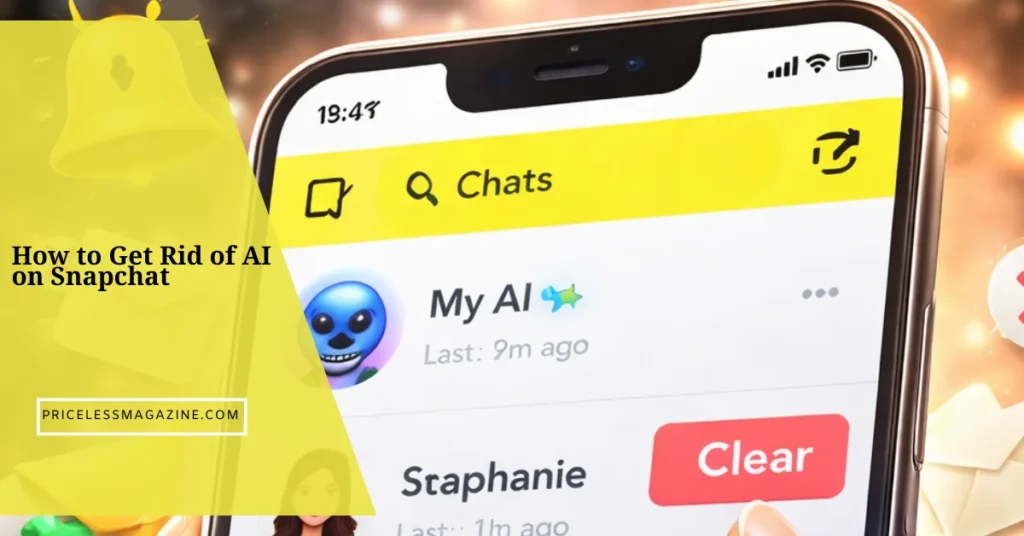

If you are wondering how to get rid of AI on Snapchat, the short answer is that you cannot fully delete the My AI feature, but you can remove it from your chat feed or limit how it appears. Most users simply want it out of sight, and that is completely possible with a few quick settings.
This guide explains exactly how to remove, unpin, or hide Snapchat AI, along with privacy tips and troubleshooting steps. By the end, you will know the easiest way to manage the feature and keep your chat experience clean.
Quick Answer: Can You Remove Snapchat AI
You cannot permanently delete Snapchat AI from the app because it is a built in feature. However, you can unpin it, clear the conversation, or hide it so it no longer appears in your main chat list.
Quick Steps Summary
- Open Snapchat chat screen
- Press and hold My AI
- Tap chat settings
- Choose unpin or clear chat
These steps instantly remove the AI from your main view.
What Snapchat AI Is and Why It Appears
Snapchat AI, often called My AI, is a chatbot integrated into the chat section. It is designed to answer questions, suggest ideas, and interact with users directly.
The feature appears pinned because Snapchat wants users to easily access it. This placement keeps it visible at the top of your chat feed by default.
Why It Is Pinned
The chatbot is treated like a conversation thread. Pinning ensures it remains easy to find and encourages engagement.
Free vs Premium Users
Free users can unpin or hide it. Premium subscribers may get additional controls depending on feature updates.
How to Get Rid of AI on Snapchat Step by Step
This section explains the exact process in a simple walkthrough so you can remove the AI from your chat feed quickly.
Method 1: Unpin My AI From Chat Feed
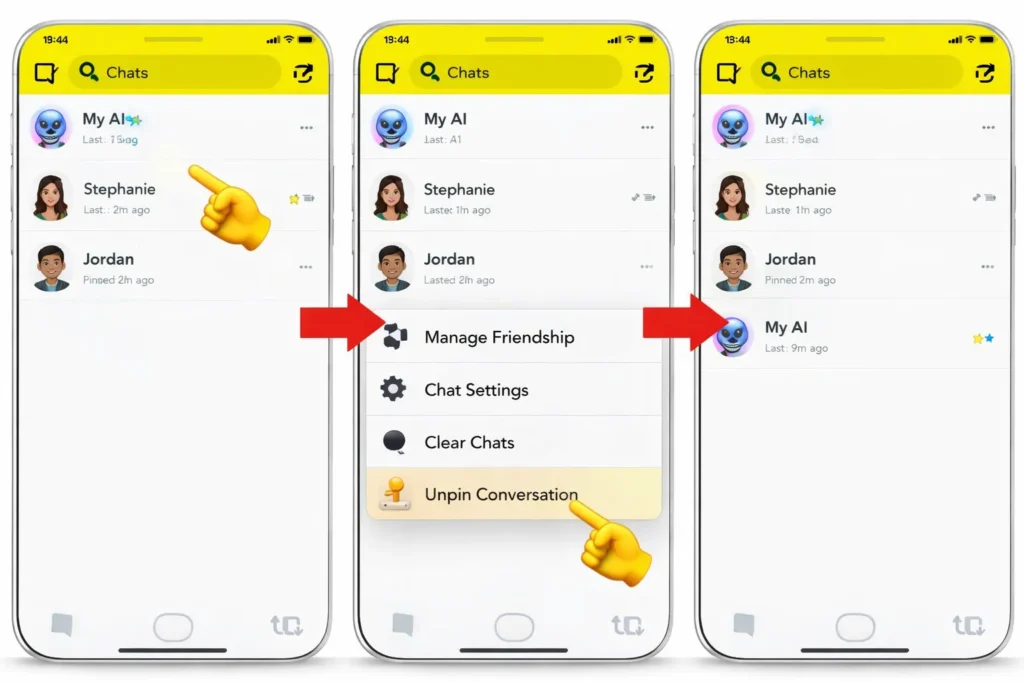
Open the chat screen and press on My AI.
Select chat settings and choose unpin conversation.
The AI will move down the list and no longer stay at the top.
Method 2: Clear the Conversation
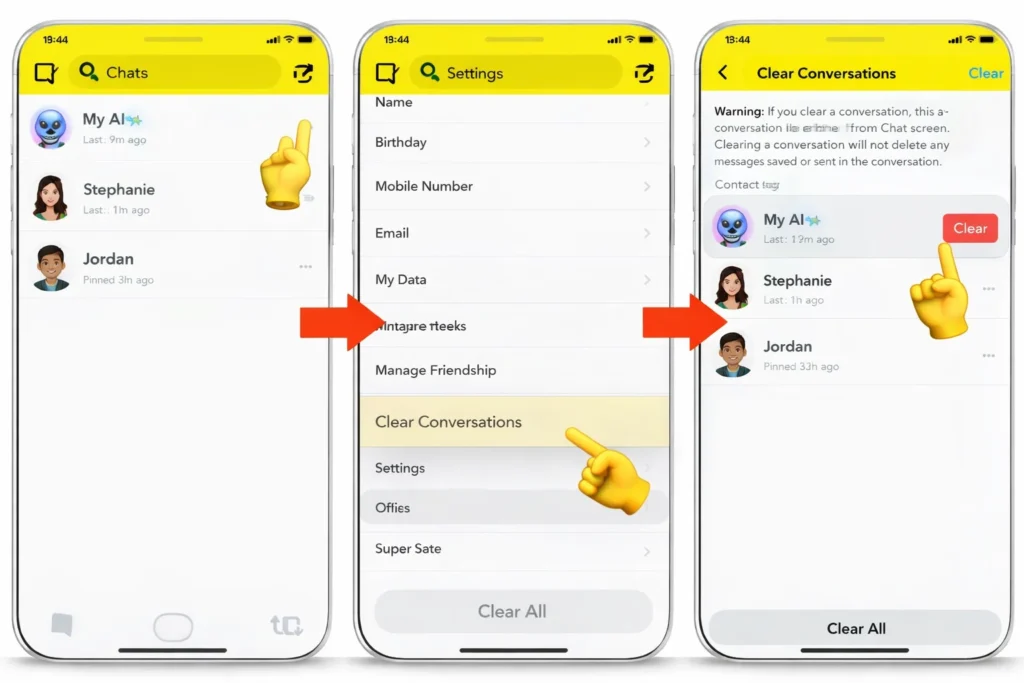
Clearing the chat removes the visible thread.
Go to settings, clear conversations, and remove My AI.
This keeps your chat feed uncluttered.
Method 3: Manage Chat Settings
You can adjust notifications and interaction preferences.
This reduces visibility and prevents distractions.
How to Hide Snapchat AI Without Deleting
Some users prefer hiding rather than removing. This keeps the feature accessible but out of sight.
Muting Notifications
Turning off alerts prevents interruptions and keeps the interface clean.
Moving It Out of Chat View
Unpinning automatically moves it down the list so it does not appear first.
Limiting Interaction
Simply avoid messaging the chatbot. Without activity, it becomes less noticeable.
Differences Between Snapchat Plus and Free Accounts
Account type affects how much control you have over AI features.
| Feature | Free Account | Snapchat Plus |
|---|---|---|
| Unpin AI | Yes | Yes |
| Clear chat | Yes | Yes |
| Extra controls | Limited | More options |
Premium features may expand over time, but core removal steps remain similar.
Why You Cannot Fully Delete Snapchat AI
Snapchat AI is built into the platform’s chat system. Because it is a core feature, it cannot be completely removed from the app.
The design focuses on keeping AI accessible while giving users limited control over visibility. This approach allows the feature to remain part of the platform experience.
Privacy and Data Considerations
Many users want to remove AI due to privacy concerns. Understanding how the feature works can help you feel more in control.
What Data the AI Uses
The chatbot may use conversation context to generate replies. It does not access personal media unless shared in chat.
How to Protect Your Privacy
- Avoid sharing sensitive information
- Clear chat history regularly
- Adjust permissions in settings
Managing Permissions
Review app permissions to ensure only necessary data access is allowed.
Important: Always treat chatbot conversations like any online interaction and avoid sharing private details.
Troubleshooting If AI Does Not Disappear
Sometimes the feature may still appear after following steps. In most cases, a quick fix resolves the issue.
Update the App
Outdated versions may not show the latest controls. Updating ensures you have the newest options.
Log Out and Back In
Refreshing your session can reset chat display settings.
Check Chat Settings Again
Confirm that the conversation is unpinned and cleared.
Why People Want to Remove Snapchat AI
Understanding user motivations helps explain why this topic is so popular.
Interface Clutter
Many users prefer a simpler chat list without extra conversations.
Privacy Concerns
Some people are cautious about interacting with AI tools.
Personal Preference
Not everyone enjoys chatbot interactions, especially in social apps.
Alternative Ways to Limit AI Interaction
If removal is not necessary, you can simply reduce how often you see or interact with the feature.
Ignore the Chat
Without engagement, the chatbot remains inactive.
Restrict Notifications
Turning off alerts prevents distractions.
Pros and Cons of Snapchat AI
Understanding both sides helps you decide whether to keep or hide the feature.
Benefits
- Quick answers and suggestions
- Fun conversation tool
- Integrated directly in chat
Drawbacks
- Takes space in chat feed
- Not useful for all users
- Raises privacy concerns
Why Understanding Feature Control Matters
Managing app features improves user experience. Knowing how to adjust visibility allows you to personalize your interface.
Small changes like unpinning conversations can make the app feel cleaner and more organized. Control over features also builds confidence in using digital platforms.
FAQs
Find answers to the most common questions
Can Snapchat AI reappear after removing it?
Yes, it may show again if you interact with it or reset chat settings.
Does clearing AI chat remove saved messages?
Clearing removes visible conversation history but not the feature itself.
Can you block Snapchat AI completely?
Blocking is not supported, but hiding and limiting interaction works effectively.
Is Snapchat AI available on all devices?
Yes, it is integrated across most app versions where the feature is supported.
Does removing AI affect other chats?
No, it only changes how the chatbot appears in your chat list.
Conclusion
Learning how to get rid of AI on Snapchat is mostly about visibility control rather than full removal. By unpinning the conversation, clearing chat history, or adjusting settings, you can keep the feature out of your main view.
These simple steps make the app feel less cluttered and more personalized. Whether your goal is privacy, focus, or preference, managing AI visibility gives you full control over your chat experience.